This series walks through a Business Email Compromise (BEC) investigation we worked in November 2025. A single user account at an accounting firm was compromised for just over two days before detection. The Threat Actor (TA) attempted a payment diversion, got caught, and pivoted to a mass credential harvesting campaign. We reconstructed the full attack timeline from the Microsoft 365 Unified Audit Log (UAL), Entra ID sign-in logs, and Message Trace logs.
All names, organizations, domains, and identifiers in this series have been anonymized. The investigation details, timestamps, queries, and findings are real.
The focus of this series is how we investigated, not just what the TA did. Each post follows the process step by step, with the exact queries we ran and the output we got. The goal is for you to take the same methods and apply them in your own environment if/when the time comes.
The incident
On 19 November 2025, at 6:15 PM (UTC), mass outbound emails began sending from the account schen@meridianadvisory.com at Meridian Advisory Group. The emails were OneDrive sharing notifications linking to a PDF titled “HARTWELL & ASSOCIATES - STATEMENTS.” Sarah Chen, the account holder, was not responsible for sending them.
One of the administrators was among the recipients of the mass link sharing event. They recognized the email as suspicious and started investigating. The account password was reset at 8:05 PM. From there, we were brought in to determine the scope: how the TA got in, how long they had access, what they accessed, and what they sent.
Data collection
For M365 investigations, we pull three primary data sources:
The Unified Audit Log (UAL) records actions across Exchange, SharePoint, OneDrive, Azure AD, and other M365 services. Operations include email sends, file accesses, inbox rule creation, and logins. It’s the single best artifact for reconstructing what happened in a compromised tenant. Microsoft’s UAL documentation covers the full list of recorded operations.
UAL collection is not enabled by default in all tenants. Verify that auditing is turned on before you need it. If it’s off when the compromise happens, this data won’t exist. Check this before an incident, not during one. It takes two minutes to verify.
# Install the Exchange Online module if you don't have it
Install-Module -Name ExchangeOnlineManagement

# Import the module
Import-Module ExchangeOnlineManagement

# Connect to Exchange Online
Connect-ExchangeOnline

# Check if unified auditing is enabled
Get-AdminAuditLogConfig | Format-List UnifiedAuditLogIngestionEnabled
If that returns False, enable it with Set-AdminAuditLogConfig -UnifiedAuditLogIngestionEnabled $true. Microsoft’s guide to turning on auditing covers the full steps and prerequisites.
Entra ID sign-in logs give you authentication detail the UAL doesn’t: device information, conditional access policy evaluation, MFA status, risk scores, geographic data.
Message Trace logs record email delivery details: sender, recipient, subject, message ID, delivery status, and connector information. The UAL tells you an email was sent, but Message Trace tells you who received it and whether it was delivered, quarantined, or filtered. In a BEC case where the TA sent 407 emails, Message Trace is how you build the recipient list and assess the blast radius.
We need all three to get a complete picture of an account compromise.
We used the Microsoft Extractor Suite by Invictus IR to pull all three. It’s open source, purpose-built for cloud IR, and handles the pagination and throttling that raw PowerShell extraction requires at scale. If you want to go deeper on these techniques, Invictus IR’s Incident Response in the Microsoft Cloud training covers the full methodology in detail.
# Define collection parameters
$userId    = "schen@meridianadvisory.com"
$startDate = "2025-11-12"
$caseName  = "BEC-Investigation"

# Connect to Exchange Online and Microsoft Graph
Connect-ExchangeOnline
Connect-MgGraph -Scopes "AuditLog.Read.All","Directory.Read.All"

# Pull Unified Audit Log for the target user
# Scope to one week before the known incident
Get-UALGraph -searchName $caseName `
    -userIds $userId `
    -startDate $startDate `
    -Output "JSON"

# Pull Entra ID sign-in logs for the same window
Get-GraphEntraSignInLogs -startDate $startDate `
    -userIds $userId `
    -Output "JSON"

# Pull Message Trace logs for the compromised account
Get-MessageTraceLog -startDate $startDate `
    -userIds $userId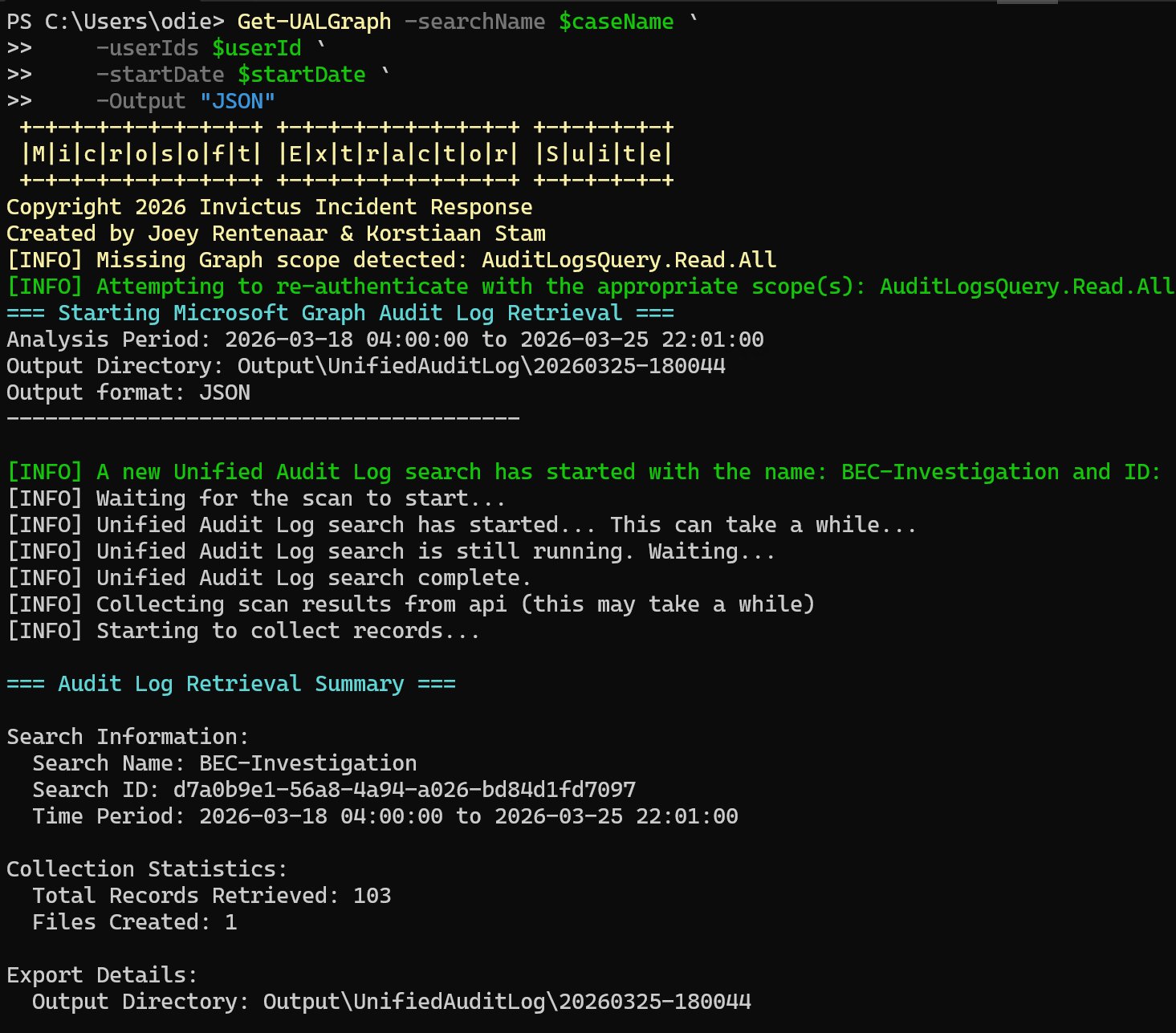
Figure 1 — Extractor Suite pulling the Unified Audit Log via Get-UALGraph.
Since the administrators confirmed only one account was involved in the mass email event, we scoped collection to just schen@meridianadvisory.com. Collecting for a single user is faster and keeps the dataset focused. If the investigation reveals lateral movement or additional compromised accounts, we can always expand collection to other users or pull tenant-wide logs later.
We scoped the extraction to one week before the known incident through the day of detection. For BEC investigations, go wider than the known incident dates. Attacker dwell time in these cases can average weeks, and you don’t want your earliest indicator sitting one day outside your extraction window. If we don’t find anything suspicious in this initial data, then we’ll push the time slice out further.
The raw export we retained for the case extends through 22 November and includes post-remediation activity. For this first post, though, we’re working from the 12-19 November incident window because that reflects the dataset we were using to orient ourselves on the night of 19 November. That working subset contains 3,894 events. We’ll use the later events in subsequent posts when they matter for post-remediation validation.
Ingesting into ADX for analysis
The Extractor Suite exports JSON files. For analysis, we ingested the UAL export into an Azure Data Explorer (ADX) cluster. ADX gives you KQL (Kusto Query Language) for fast, structured analysis across large datasets, and the queries are (somewhat) portable to Microsoft Sentinel and Log Analytics if your environment uses those.
Nathan McNulty has a walkthrough on ingesting sign-in log exports into ADX: Nathan McNulty’s LinkedIn post. We’ll follow a similar process and simply upload the output from the Get-UALGraph command into a new table in ADX via the web UI.
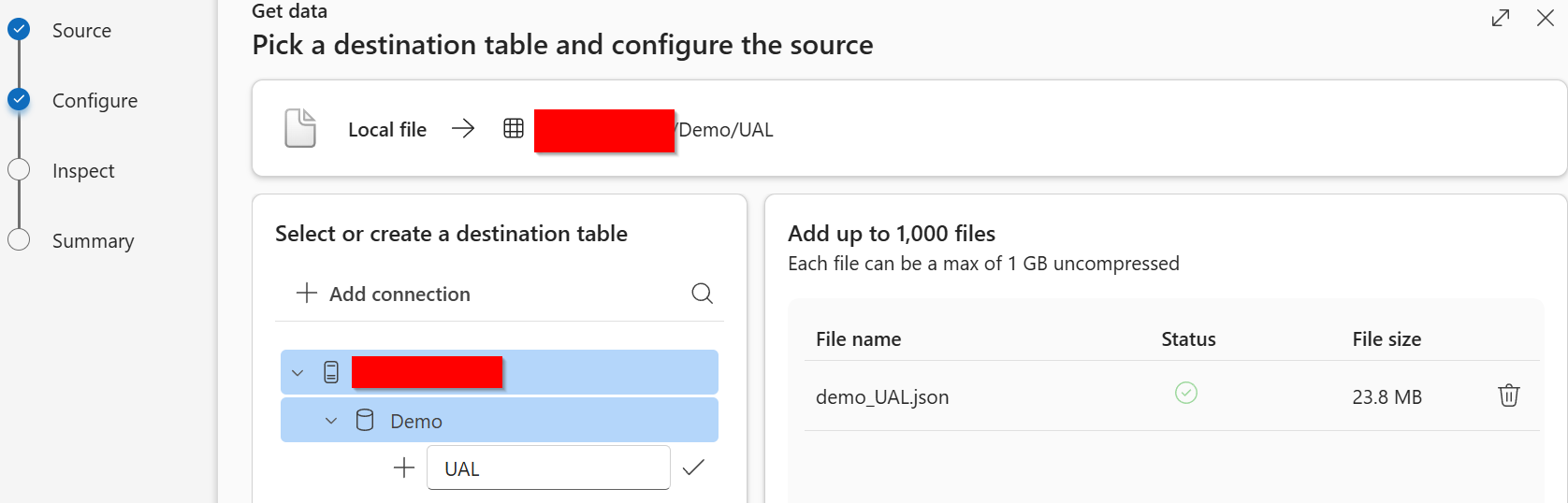
Figure 2 — Ingesting the Extractor Suite JSON output into ADX via the web UI.
Once the data is in ADX, all analysis from this point forward uses KQL.
What does a raw UAL event look like?
If you haven’t worked with UAL exports before, here’s what a single event looks like. This is a Send event from the dataset:
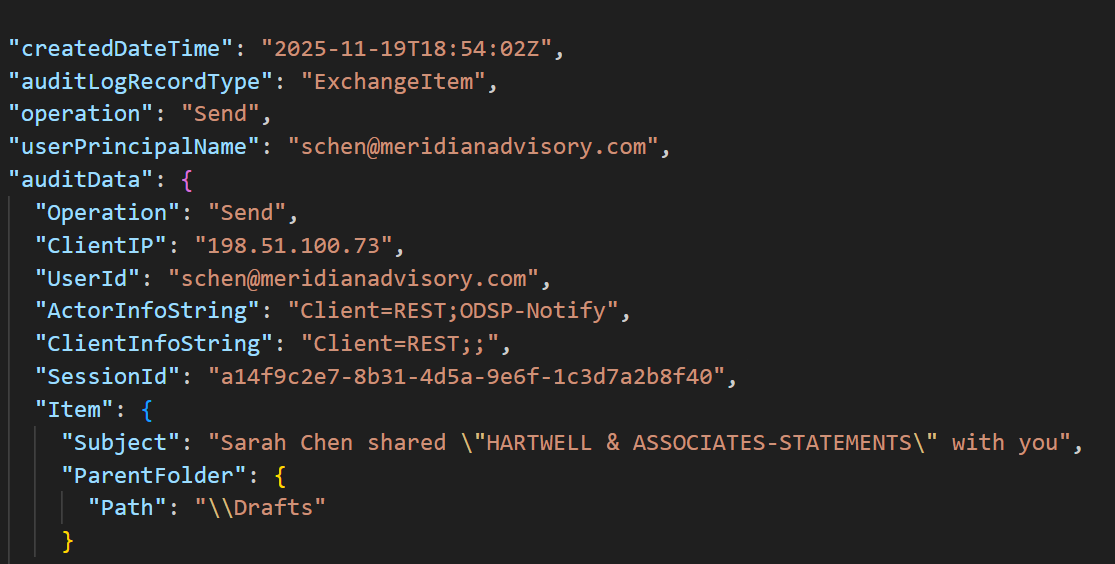
Figure 3 — A single UAL audit event as it appears in ADX.
Each event has top-level fields like operation and userPrincipalName, and an auditData object with the operation-specific detail. In ADX, auditData is ingested as a dynamic column, so you can query into its nested fields using dot notation (e.g., auditData.ClientIP, auditData.Item.Subject). You’ll see this throughout the queries below.
What does the data look like?
The UAL export contained 3,894 audit events for a single user, schen@meridianadvisory.com, spanning 12 November through 19 November. We grouped by date to see the daily volume. In a BEC investigation, you’re looking for spikes, anomalous quiet periods, and the boundaries of attacker activity.
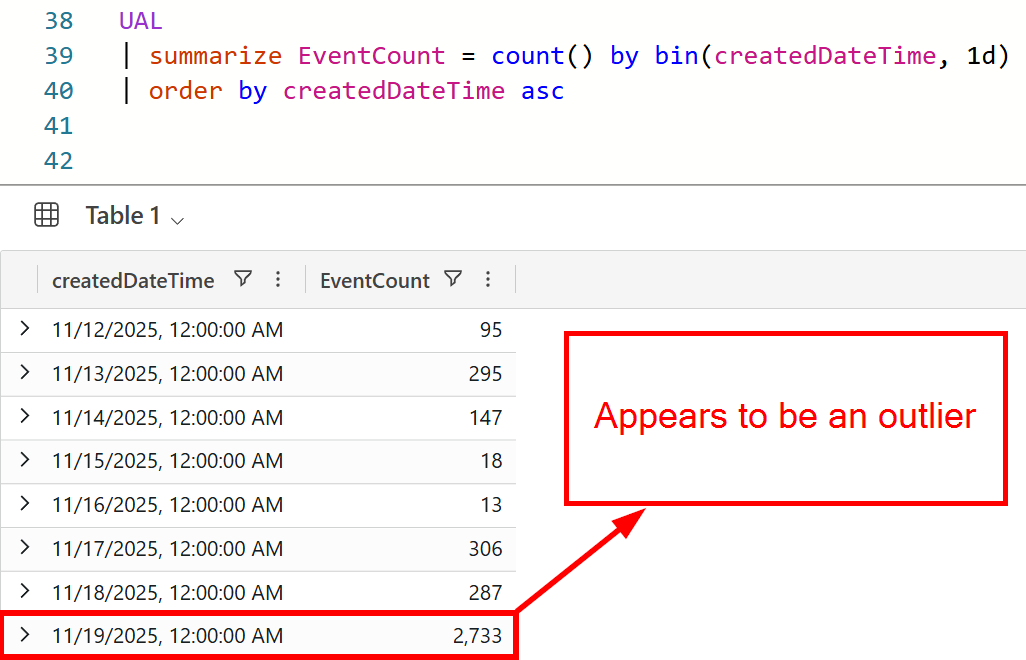
Figure 4 — Daily event counts in ADX. November 19 dominates the dataset.
Right away, November 19th seems to stand out as a significant spike. But we can get a better sense of just how dramatic the difference is, by visualizing it as a bar chart.
November 19 accounts for 2,733 of the 3,894 total events. That’s 70% of all activity in the entire 8-day window, concentrated in a single day. Normal user activity doesn’t produce that volume. Something automated or large-scale happened on November 19.
The other dates that stand out: November 13 (295 events, higher than surrounding days) and November 17-18 (306 and 287 events respectively). These became important later.
What types of operations occurred?
The daily volume provides a clearer sense of when something happened. But now we need to get a better sense of what happened. So let’s break down the operations that occurred.
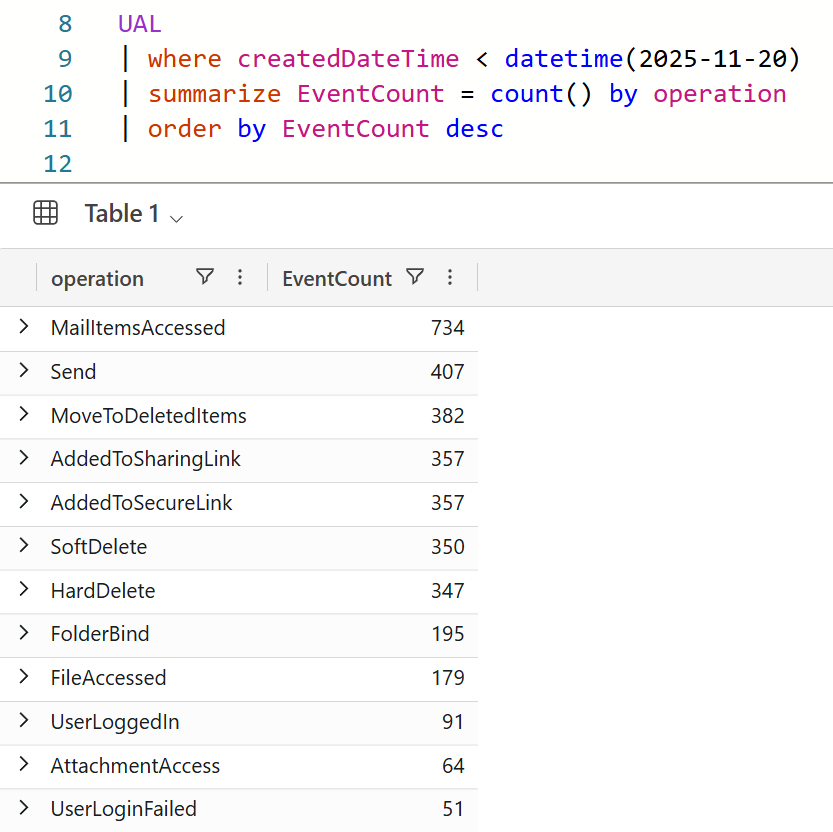
Figure 6 — UAL operations by type across the full 12-19 November window.
If you’re not familiar with UAL operations, here’s what the key ones mean:
- MailItemsAccessed: Logged when email items are opened or synced by a client. This is a high-volume operation by design. Outlook desktop, mobile, and background sync all generate these events, so a large count is normal even for a single user.
- Send: An email was sent from this account. Each Send event represents one outbound message.
- MoveToDeletedItems / SoftDelete / HardDelete: Three stages of email deletion in Exchange. MoveToDeletedItems puts an item in the Deleted Items folder. SoftDelete removes it from Deleted Items into Recoverable Items. HardDelete permanently purges it from Recoverable Items. A normal user might generate MoveToDeletedItems regularly, but SoftDelete and HardDelete in volume indicate deliberate purging beyond routine cleanup.
- AddedToSharingLink / AddedToSecureLink: SharePoint logs both operations for a single share action. AddedToSecureLink records that a user was added to a “specific people” sharing link. AddedToSharingLink is a complementary audit event logged at the same time. The 357 matching pairs represent 357 unique shares, not 714 separate actions.
- UserLoggedIn / UserLoginFailed: Authentication events from Azure AD. UserLoggedIn covers successful sign-ins. UserLoginFailed covers failures, which can include expired tokens, MFA challenges, and incorrect credentials.
What happened on November 19?
The daily volume told us November 19 was the peak. So we dug into exactly what happened during that day to get a better look.
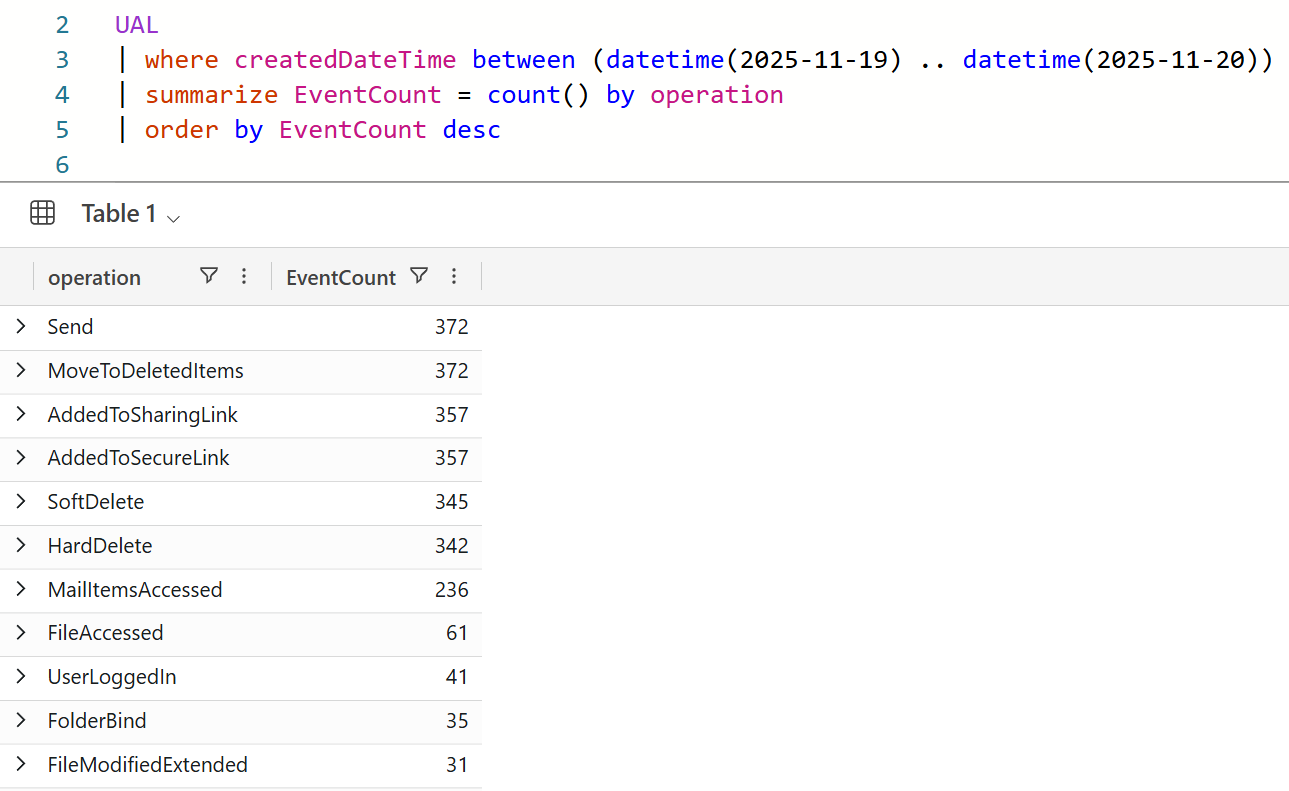
Figure 7 — Operations on November 19 alone. Send, deletion, and sharing dominate.
Nearly all of the Send, deletion, and sharing activity happened on November 19. The TA sent 372 emails, shared a single file with 357 recipients, and deleted 1,059 items on that single day. The remaining 35 Send events in this 12-19 November working subset were spread across the preceding week.
This confirmed November 19 as the mass phishing event. But the activity in the days before, the 306 events on November 17 and 287 on November 18, suggested the TA was already active and doing something different.
What’s hiding in the low-volume operations?
High-volume operations tell you what the TA did at scale. Low-volume operations often tell you how they set up and covered their tracks. We filtered for operations that occurred fewer than 20 times.
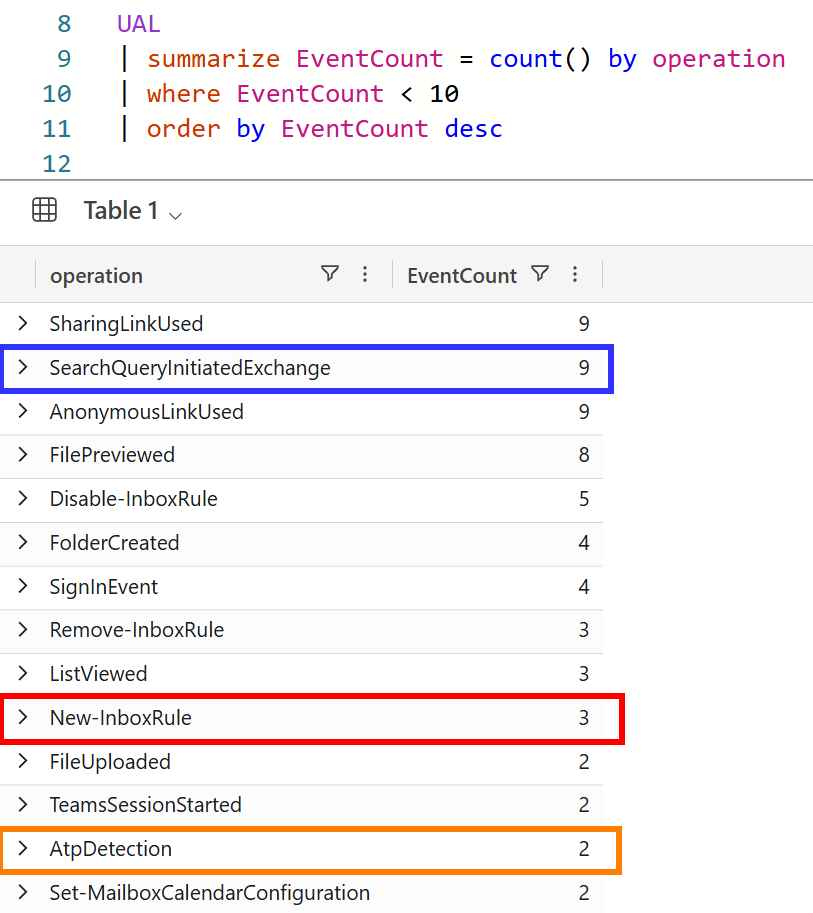
Figure 8 — Low-volume operations. Inbox rules, mailbox searches, and ATP detections surface here.
Three operations stood out immediately:
New-InboxRule (3 events): The TA created three inbox rules. In BEC investigations, inbox rules are one of the first things to check. Attackers use them to redirect or hide emails so the legitimate user doesn’t see evidence of the compromise.
SearchQueryInitiatedExchange (9 events): The TA ran 9 searches in the mailbox. These log entries include the search query text, which tells you exactly what the TA was looking for. We’ll use those queries in a later post.
AtpDetection (2 events): Microsoft Defender for Office 365 (ATP) flagged something. These entries tell you what was detected and when, which we needed to compare against the timeline of the attack.
Inbox rule triage
Three rules were created on this account. We pulled the details from the UAL:
If you don’t have the UAL ingested into ADX, the Extractor Suite can pull inbox rules directly from Exchange Online:
# Pull current inbox rules for the compromised account
# Requires an active Exchange Online connection (Connect-ExchangeOnline)
$userId = "schen@meridianadvisory.com"
Get-MailboxRules -userIds $userId
That gives you the current rules on the account. In our case, the IR team had already removed the TA’s rules by the time we ran this, so the UAL was the only place to find what had been created and when. Either way, here’s what was in the log:
UAL
| where operation == "New-InboxRule"
| mv-apply P = auditData.Parameters on (
    summarize
        RuleName = take_anyif(tostring(P.Value), tostring(P.Name) == "Name"),
        SenderFilter = take_anyif(tostring(P.Value), tostring(P.Name) == "FromAddressContainsWords"),
        MoveToFolder = take_anyif(tostring(P.Value), tostring(P.Name) == "MoveToFolder")
)
| extend ClientIP = tostring(auditData.ClientIP)
| project createdDateTime, RuleName, SenderFilter, MoveToFolder, ClientIP
| order by createdDateTime asc| Timestamp (UTC) | Name | Sender Filter | Destination |
|---|---|---|---|
| Nov 17, 16:43 | Admin | ContainsWords: rkaneko@solbridge.com;solbridge.com | Conversation History |
| Nov 18, 13:52 | iT | ContainsWords: portal.myworkspace.com | RSS Feeds |
| Nov 19, 18:11 | Admin2 | (none, catch-all) | RSS Feeds |
All three rules came from the same IP (38.69.8.29), and all three routed mail to folders the user would rarely check. The rules targeted a business contact, an internal notification system, and then everything else. We’ll dig into what each rule tells us about the TA’s objectives in a later post.
What mattered for scoping: the first rule was created on November 17 at 4:43 PM (UTC). That put the TA inside the account two full days before the mass phishing event. And all three rules came from the same IP, 38.69.8.29, which showed up nowhere else in Sarah Chen’s normal activity. That IP needed a closer look.
Set up an alert on New-InboxRule operations in every tenant you monitor. Most users rarely create inbox rules, so new ones are worth reviewing. We run an alert that sends an email whenever a rule is created. It takes minutes to set up, generates almost no noise, and can surface a compromise days before the visible damage starts.
What we knew at this point
After running these queries, we had the shape of the investigation. The mass phishing campaign on November 19 was the visible event, but the inbox rules put the TA inside the account on the afternoon of November 17. They had two days of access before the mass campaign. The activity from November 12-16 seemed more like Sarah Chen’s normal usage, but we hadn’t confirmed that yet.
38.69.8.2938.69.8.2938.69.8.29We knew what the TA did. We didn’t yet know when they got in or how. The IP 38.69.8.29 was where we needed to look next. If we could trace it back through the authentication logs, we’d find the initial sign-in. And the user-agent on that sign-in would tell us exactly how they got in.
The next post picks up there.